901 Tower Drive • Suite 420 •
Troy, Michigan 48098
• P: 248.269.1122 •
E: bianchipr@bianchipr.com
901 Tower Drive • Suite 420 •
Troy, Michigan 48098
• P: 248.269.1122 •
E: bianchipr@bianchipr.com

Bianchi Public Relations founded in 1992.

Headquartered in suburban Detroit, the heart of our industry.

Global reach through PRGN partners.

Senior-level PR strategic communications counsel.

Bring content, context and credibility to our clients.

You want to enhance your company’s awareness, reputation, SEO authority and sales in the North American OEM automotive / mobility market through earned media.
You want your company to be recognized and accepted as a capable, preferred development partner in the emerging autonomous car, electrified vehicle, connected car or shared mobility space.
You value deep automotive market and media knowledge, and senior-level attention provided by experienced, automotive/mobility-focused PR professionals.
You want a long-term PR firm partner that will provide a stable, dedicated team that strives to maximize the credibility, impact and ROI of your PR / communications budget.
You understand that great PR work takes time, money and commitment to participate in a collaborative process to be successful.
You can be responsive, cooperative and open, giving us candid feedback along the way.
Your first project with us would have a minimum budget of $10,000 … or your ongoing relationship with us would fall in the $80,000 – $200,000 per year range.








Jim Bianchi, APR – 42+ years automotive PR experience.

Jessica Muzik, APR – 25+ years automotive PR experience

Leslie Dagg – 21+ years automotive PR experience

Adriana Van Duyn, APR – 17+ years automotive PR experience
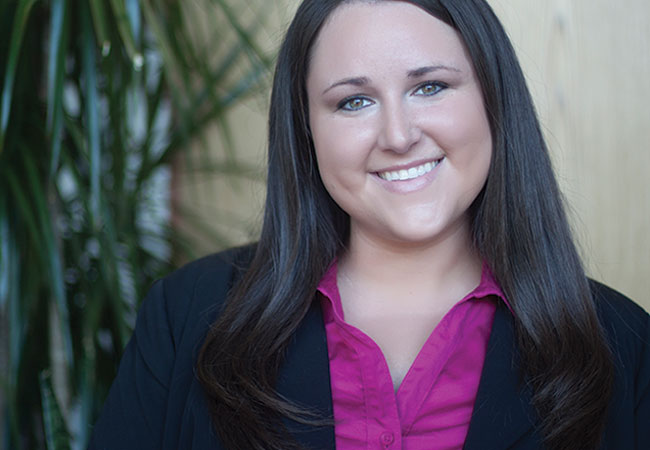
Jaclyn Bussert – 10+ years automotive PR experience
901 Tower Drive • Suite 420 •
Troy, Michigan 48098
• P: 248.269.1122 •
E: bianchipr@bianchipr.com